[2022] CCTV OCR
This document will describe the pipeline of CCTV OCR with reference to the colab notebook.
Setting up Google Vision API key
We currently have $300 credit in Google Cloud to be utilized for Vision API requests. 1000 requests cost $1.50. At 1 fps for a 15 min video we spend 900 requests for binary classification and around 190 requests for OCR. If we do both binary classification and OCR, we could only process around 150, 15min videos. If we only use Google Vision Engine for OCR step, then we can use it for around 1000 videos.
Google Account: hydrotrekgqc@gmail.com
API key is placed in drive at: /content/drive/MyDrive/CCTV_OCR/cctv_vision_api_key.json
As long as you are using hydrotrekgqc@gmail.com account, no setup will be necessary. If not follow the steps here to setup the Vision API.
Input
- Path to video file
Output
- Label data CSV:
/content/drive/MyDrive/VS_Research/CCTV/DNV/data/CCTV_Training_Data/<video_name>.csv - Training images:
/content/drive/MyDrive/VS_Research/CCTV/DNV/data/CCTV_Training_Data/<video_name>/- Image naming convension:
<video_name>_<frame_id>.png
- Image naming convension:
How to use
- Open the colab notebook.
- Run the section 1 (twice) and section 2.
- Goto Section 3, Run ME, change
video_file_pathto the video you want to be processed and run the cell.
Current implementation is intended to be used for few number of videos as each video processing takes extensive amount of Google Cloud Credits. To overcome that limitation, need to change #2 in Pipeline to use OpenCV based method.
Stages in run
- Binary classifer training (If already done this stage will be skipped) [Details]
- Running OCR on the frames [OCR Pipeline] [Dataflow diagram]
OCR Pipeline
This will take in a video file path and process frame by frame
Binary classification on the frames as Text/NoText.
- Currently using Google Vision API
- Has to switch to OpenCV based method to save Google Cloud credits
Run OCR on the frames containing text using Google Vision API. (details)
Blur all text fields and save frames as .png files.
/content/drive/MyDrive/VS_Research/CCTV/DNV/data/CCTV_Training_Data/<video_name>/<video_name>_<frame_id>.png- Currently frames are generated at the rate of 1 fps.
- Need to add funtionality to have custom fps on the output fps. Check the proposed method here.
Extract label information from the generated JSON files. (details)
- A CSV file is created for each video containing the headers,
image name,obsrvation,labelAbbr,distance,date,time,from,to,counterandtext - CSV file path:
/content/drive/MyDrive/VS_Research/CCTV/DNV/data/CCTV_Training_Data/<video_name>.csv
- A CSV file is created for each video containing the headers,
Extended Details
Standardizing the frame size by cropping to 700 x 470 pixels.
- Every frame will be standardized by cropping to
700 x 470size. - There were 8 different sized vidoes in the samples we processed and some of them had a black line appearing in edges.
- 700 and 470 were smaller than all of the found dimensions
Binary classification on the frames as Text/NoText
This is used to pre-screen the video frames to filter out the frames containing text in the middle of the screen (ie. defect information, video starting information, etc.) Motive behind this step is to save the number of requests made to Google Vision API in the OCR step of the pipeline.
Plan is to implement this using OpenCV methods. To expeditate the initial steps, this binary classifier is implemented using Google Vision API itself.
Binary classification via Google API
- Frames from video (at 1 fps) is processed via OpenCV to blur out the distance and timestamp fields.
- Those frames are sent to Google Vision modele for OCR and the results (JSON files) are saved to
/content/drive/MyDrive/VS_Research/CCTV/DNV/data/Binary_classification/GVision_binary_JSON/<video_name>/directory. - Those JSON files are processed to find the presense of text in each corresponding frame.
Prospective OpenCV based method for binary classification
- Frames from video (at 1 fps) are cropped from up and down directions for 150 pixels (in y direction) to remove distance, timestamp information as well as remove some noise components we saw in the upper parts of images.
- Convert the image to HSV or HSL color spaces and improve the contrast of text in the image
- Run the image through Tesseract, to capture the presense of text. (Tesseract was not able to detect the text correctly. But it prints some random characters to the screen when text is present)
- Based on the tesseract output, classify each frame to Text/NoText.
Fast.ai transfer learning method to classify images
Model is still not generalized well to work with different videos from the trained video.
Run information:
from fastcore.script import call_parse
from fastai.vision.all import *

model_file = '/content/drive/MyDrive/VS_Research/CCTV/DNV/data/Binary_classification/binary_text_notext.pkl'
learn = load_learner(model_file, cpu = False)

test_image_path = '/content/drive/MyDrive/VS_Research/CCTV/DNV/data/test_1/SANMN00893_10006.png'
learn.predict(test_image_path)
# predict returns 3 things
# ('No Text', TensorBase(0), TensorBase([0.9891, 0.0109]))- This throws an error in my notebook. Deven will check into that.
Run OCR on the frames containing text using Google Vision API
In this step, the selected frames containing text in the middle (from the binary classifier) is sent to Google Vision Engine to OCR. Received JSON files are saved to /content/drive/MyDrive/VS_Research/CCTV/DNV/data/GVision_JSON/<video_name> folder.
Extract label information from the generated JSON files.
The JSON files are parsed to extract the required labels. They are saved to a single .csv file for each video.
Header names: image name, obsrvation, labelAbbr, distance, date, time, from, to, counterand text
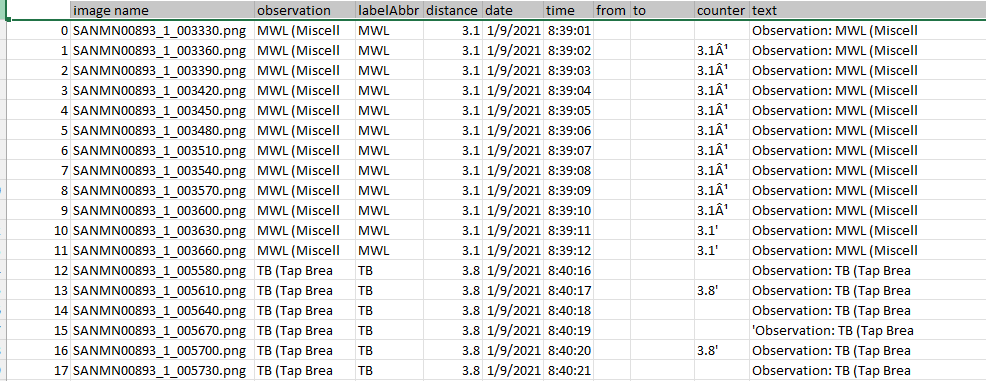 CSV file path:
/content/drive/MyDrive/VS_Research/CCTV/DNV/data/CCTV_Training_Data/<video_name>.csv